
Import STEP geometry and split it into patches
Bring a CAD solid in through the bundled OCCT translator and divide it into one patch per body, so a force can be asked about a component rather than the whole model.
Runs on the free tier.
-
Select Geometry.
-
Set Units to the units the file was exported in. The Units row sits under the Import geometry button rather than above it, and it has to be right before the import: geometry is rescaled to metres on import, not after.
-
Leave Heal on import on unless you have a reason not to — it sews faces and removes tiny edges in the translator.
-
Press Import geometry and choose the file. The dialog offers
*.step *.stp *.iges *.igs *.brep *.brpas CAD needing the translator, a common mesh set of*.stl *.obj *.glb *.gltf *.fbx *.dae *.ply *.3mf, and*.dat, which is treated as an aerofoil profile and gets its own Aerofoil extrusion section instead. The full mesh list comes from the bundled importer and is longer than the common set; the pane’s Supported formats box states what this build reads. -
A CAD format is recognised but nothing is drawn until it has been tessellated. Press Translate to triSurface. This runs OCCT and can take a while on a real assembly; Stop translating aborts it.
-
Read Geometry info. Watertight is the row that decides everything downstream — an open surface cannot be split reliably and will not mesh well either.
-
Under Parts, press Split into parts. The button is drawn only while the geometry has no parts yet, and is enabled only once the geometry is a surface mesh — so after the translation in step 5, not before. Each part gets a Patch n name field, and each name becomes a patch under Boundary conditions. Rename them to whatever you want the report to call them: this is the name OpenFOAM sees, so it is what a boundary condition and a force control refer to.
-
On any part, Measure force and moment on this part creates the corresponding entry under Result control → Forces and moments.
Once the geometry has parts, Split into parts is replaced by Merge back into one patch, which reverses the split.
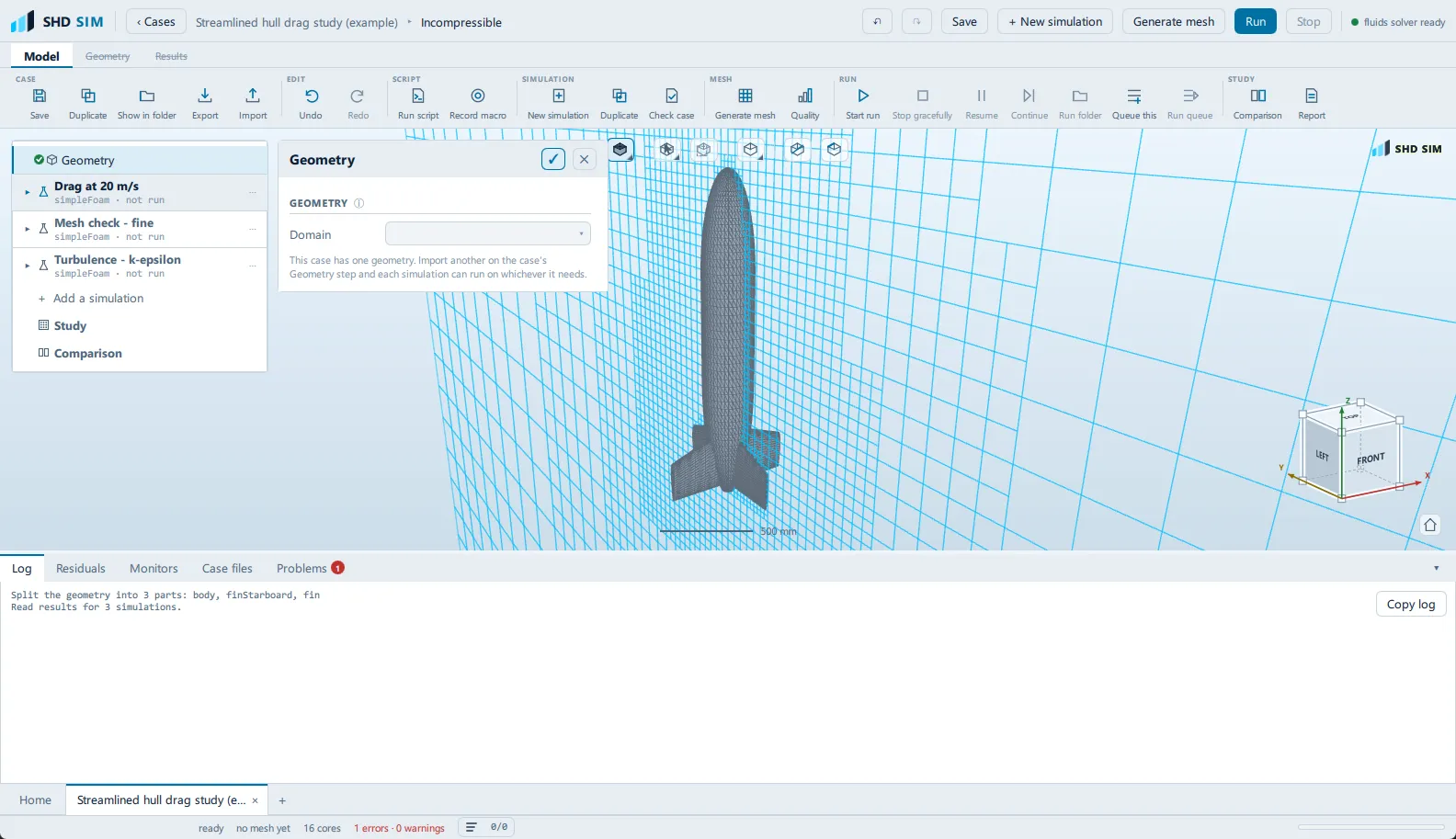
Check it worked
Section titled “Check it worked”- Geometry info reports a non-zero Triangles count and a Size that matches the real body, in metres.
- Watertight says
yes. - Every part name appears as a child of Boundary conditions in the setup tree.
If the import or the split fails, the message is indexed in Troubleshooting.